
VR
VR videos play on your monitor as a view you can look around, no headset needed. With a headset on, your library is on a panel inside SteamVR.
VR video on your monitor
A VR file stores a sphere squashed into a rectangle, usually twice, once for each eye. The built-in player undoes that and shows one eye as a normal view.
- Drag the picture to look around
- Ctrl + wheel zooms in and out; the wheel alone is still the volume
- Right-click → VR video → Recentre view looks straight ahead again
Supported formats: 180°, 360°, fisheye 190°, 200° and 220° (MKX200, MKX220, VRCA220) and RF52, with the eyes side by side, over under, or a single picture.
Marking a file as VR
A video plays as VR only once it is marked. When the name or the picture's shape looks like VR, the detail panel offers Mark as VR. You can also:
- turn on VR video in the detail panel, or
- right-click the playing picture and choose VR video → Projection and Eye layout
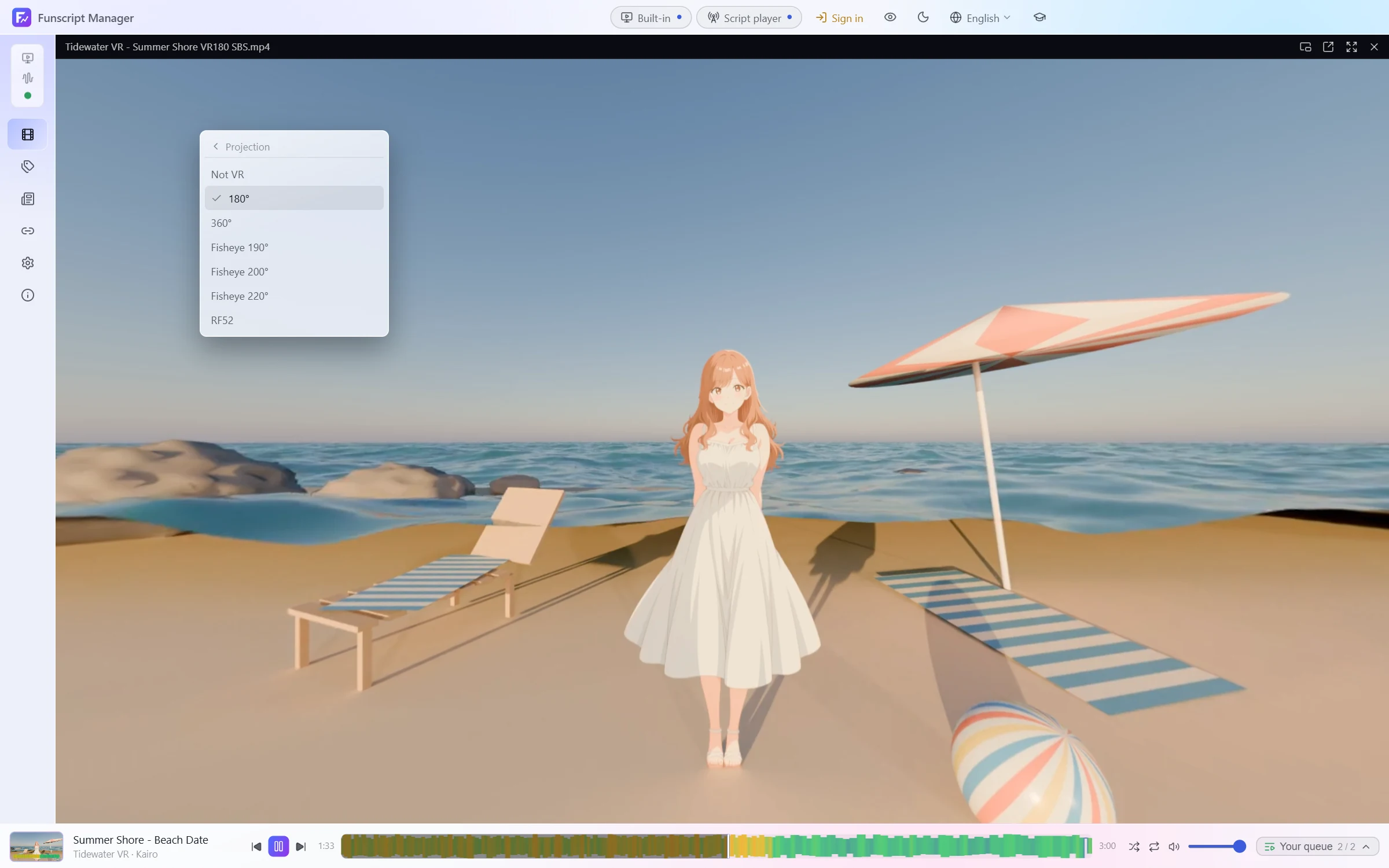
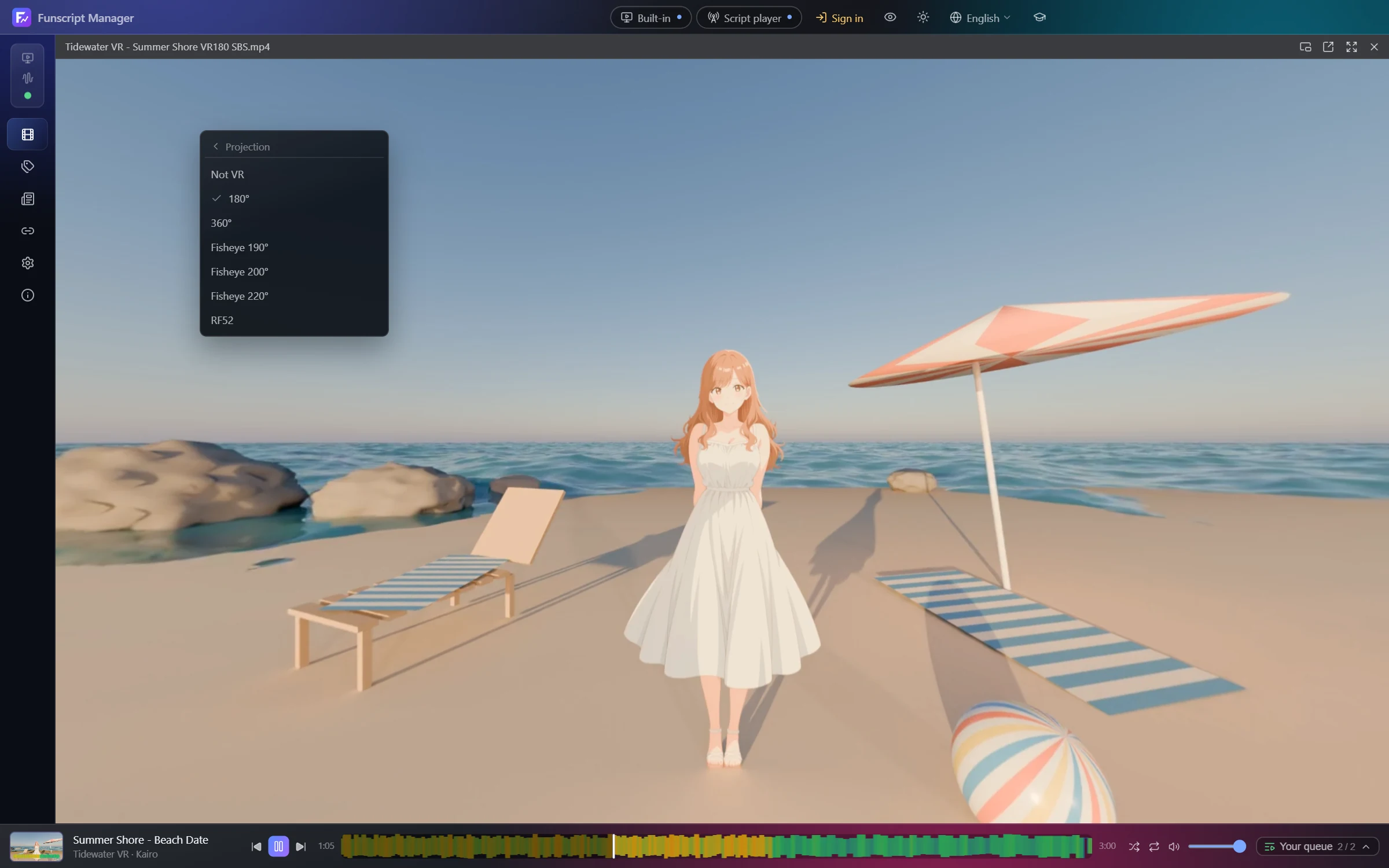
The mark is saved with the video. Thumbnails and previews of marked files show one eye as a flat picture.
The VR panel in SteamVR
With SteamVR running, the panel appears in your headset on its own. It works with any PC VR headset SteamVR supports.
Before you start: add HereSphere in the player list (see Video players) and start it. Videos started from the panel always play in HereSphere.
Using it
- Point a controller at the panel to use it. When you point away, the controller goes back to HereSphere.
- Videos: large covers, search, favourites and your pinned tags as one-tap filters. Pin more under All tags.
- Select a video to see its script versions, then Play, Play next or Add to end.
- Queue: move videos up and down, shuffle, repeat, and play or save playlists.
- The seek bar under Playing shows the heatmap. Point at it to jump.
- A second panel beside it holds the script player.
Moving and putting it away
- Hold grip while pointing at a panel to move it.
- On wrist hangs the main panel on your left wrist. In front brings it back.
- Put away hides the panel. To bring it back, turn the back of your right hand towards you and point at the button that appears on your wrist.
- The panel puts itself away when a video starts. Turn off Put away when playing to keep it up.
Panel settings sets size, height and opacity for each panel.