
Libraries and scripts
How files are matched
Scripts and subtitles are matched to a video by file name, within the same folder.
| File | Becomes |
|---|---|
Clip.mp4 | the video |
Clip.funscript | the main axis |
Clip.roll.funscript, Clip.pitch.funscript, … | extra axes of the same version |
Clip (Soft).funscript, Clip_authorA.funscript | another version |
Clip.en.srt, Clip.ja.srt | subtitles, with their language |
The recognised axes are roll, pitch, surge, sway and twist.
How strict the name match is can be set under Settings → General → Library → Script matching, from Exact to Loosest. The looser levels also match names with extra prefixes such as an author tag, but can occasionally pick the wrong video.
Script versions
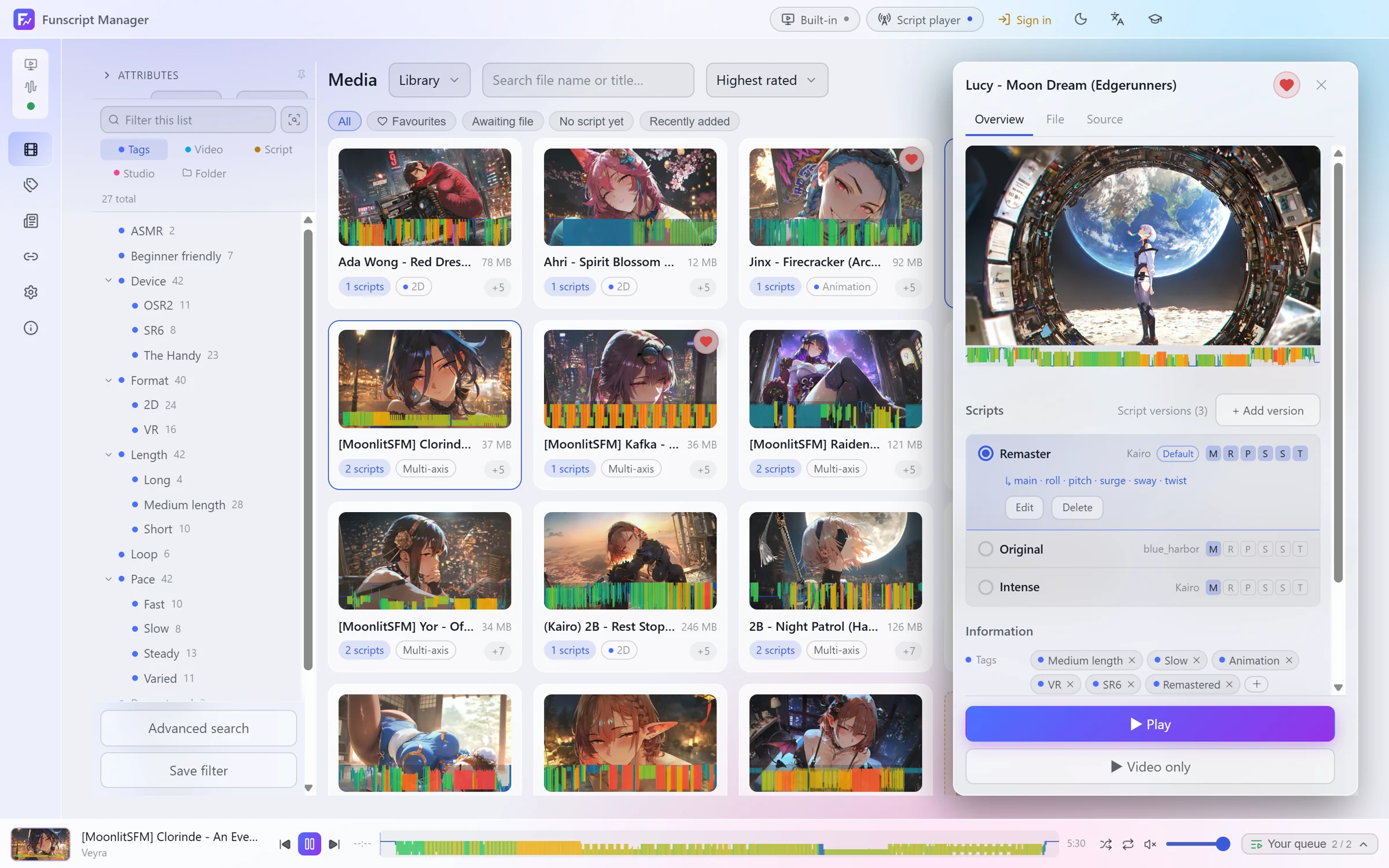
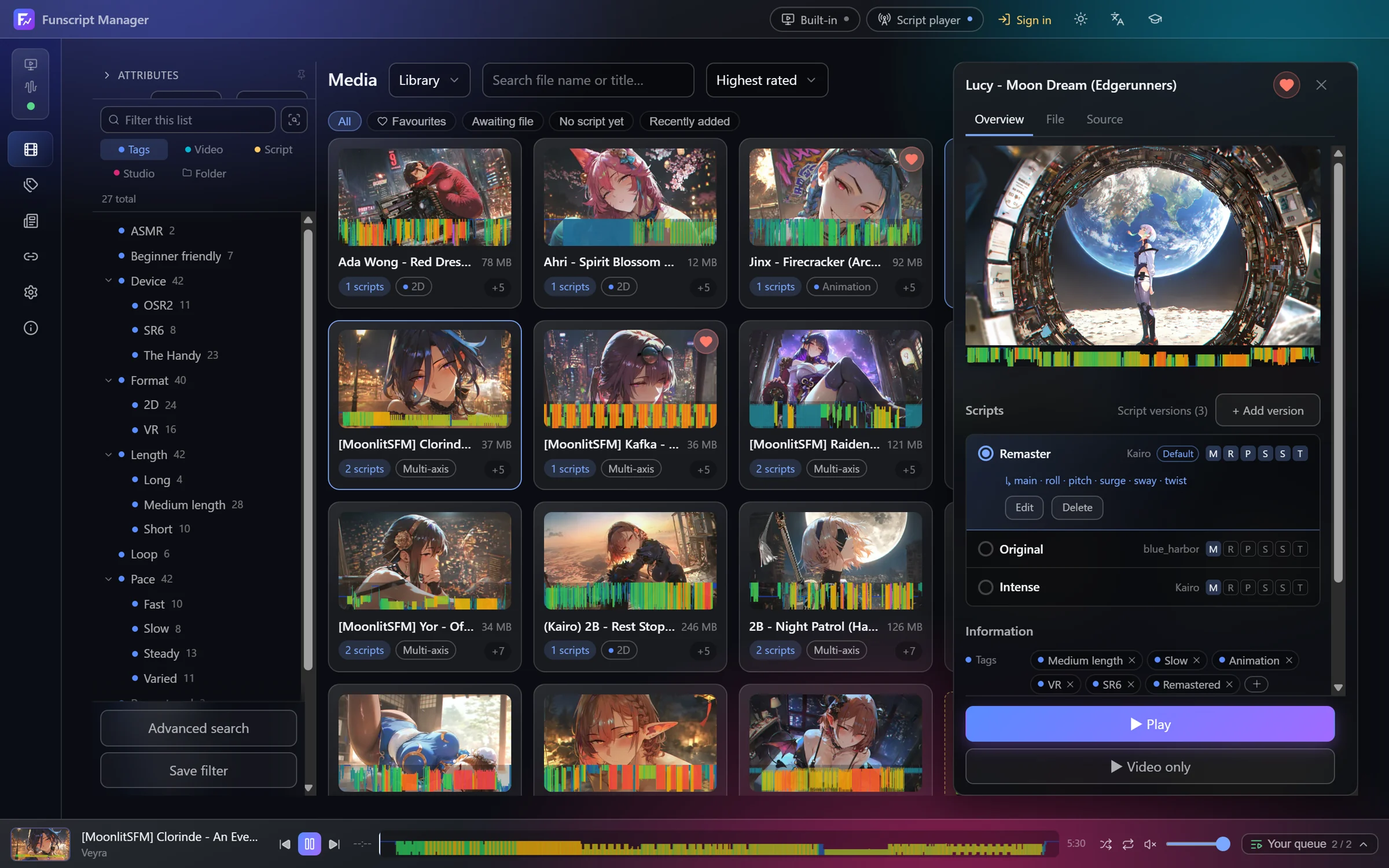
Open a video to see its versions. For each one you can:
- Set as default, the version used when you press Play
- Edit its name, author, source link and notes
- Delete it, which moves its files to the Recycle Bin
Add version takes .funscript files from anywhere. Files from outside the library are copied next to the video.
A version that only has a main axis can borrow other axes from the default multi-axis version, so the rest of your device keeps moving.
Entries without a video
When a post's scripts are available but the video has to come from somewhere else, the entry can be added with Add to library, file to follow. It shows as Awaiting file until you supply the video, by choosing a file, pasting a direct link or dropping the file on it.
Removing things
Delete on a selection offers two choices:
- Remove from library leaves the files on disk and stops showing them. They can be put back from the Libraries page.
- Delete files moves the video, its scripts, subtitles and metadata to the Recycle Bin.
Where the information is kept
Everything you set on a video is written to a small file named <video file name>.meta.json. By default it sits beside the video.
A library can keep these files together in its own hidden .fsmgr folder instead, so your video folders hold only videos, scripts and subtitles. Choose this per library on the Libraries page; the existing files move over in the background. Settings → General → Library → Metadata files for new libraries sets where new libraries start.
Either way the files stay inside the library. Move it to another drive or another computer and the tags, versions and ratings go with it. See Your data and FAQ.